Category
INDEX


【Unity Shader 基礎】URP環境でuGUI用マルチパスシェーダー
#UnityShader

投稿日:2026-04-10

更新日:2026-08-11
URP環境においては、uGUIの描画ルールがより厳しくなり、Passを複数書いても一番最初のPassしか実行してくれなくなりました。
しかし複雑なシェーダーを作りたい場合、どうしても
2日くらいAIと問答を繰り返したところ、ようやく実用的なコードを吐き出してくれたので共有します。
 マルチパスを実装することで例えば以下のような複雑な処理を1フレーム内で順に実行させることが可能です。
(一般にBloom、あるいは Glowシェーダーと言われる処理です)

uGUIにおいて、昔のビルトインRP環境であれば、ただPassを複数書くだけで上から順に実行してくれました。
しかし
ではuGUIではマルチパスシェーダーは作れないかというとそんな事はありません。
少しトリッキーですが、C#から明示的にPassを指定しつつ、CanvasRendererの挙動をハックするとマルチパスの実装が可能です。
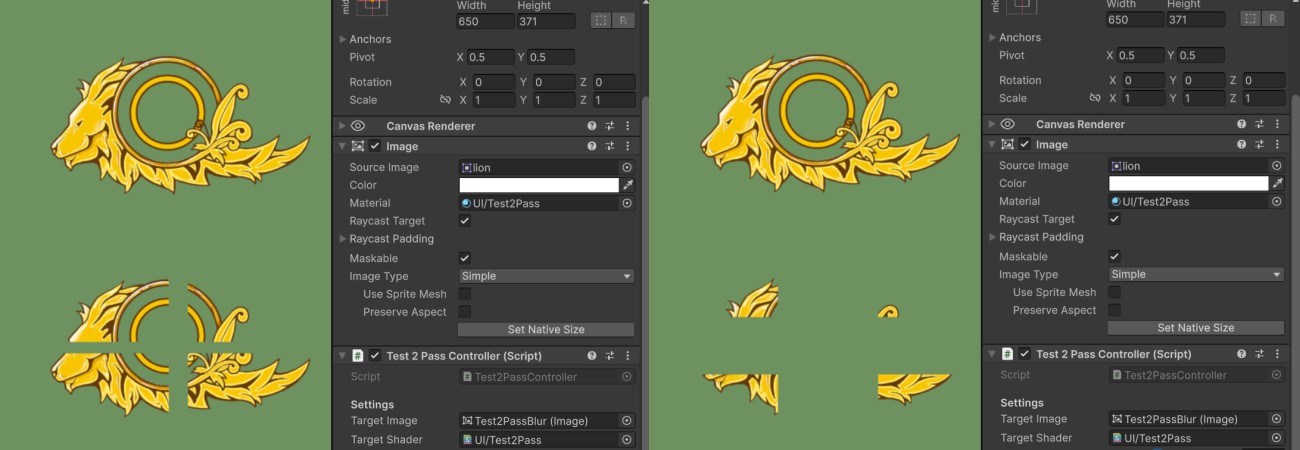
今回テストとして比較的シンプルな2Passシェーダーを作りました。
内容はC#のインスペクターから
本来はこの程度の実装であれば2Passではなく1Passでも実装できますし、描画効率も良いです。
マルチパスの説明のために、敢えてこれを2Passで実装してみます。
内容としてはPass0でx軸の画像の切り抜きを行い、Pass1でy軸の画像の切り抜きを実行します。
UnityPackageとしてこちらにまとめておきました。
展開すると
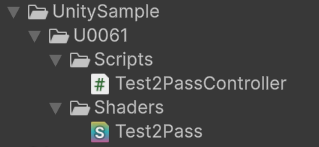
このうちの
uGUIではマルチパスを実装するには、核となるシェーダー側の実装と、シェーダーの挙動を管理するC#側の実装の2つが必要になります。
以下シェーダー側のコード全文です。


後ろの方にPassが2つ実装されています。
このコードで特徴的なのは、コメントにも書いてある通り、Passが上から順に実行される訳ではないことです。
uGUIの描画はCanvasRendererで厳しめに管理されていて、C#側から描画順の全てを管理することが困難です。
普通に実装すると、最終的にはCanvasRendererがC#側の実装を全て塗り替えてしまいます。
このため、
uGUIが標準で使う
次にC#側の実装になります。以下コード全文です。
以下のコードで、シェーダー内の2つ目のPassを明示的に呼び出し、その結果を
1つ目のPass(シェーダー内の一番上のPass)の呼び出しは、CanvasRendererに任せます。
このため描画順はPass1 > Pass0という、通常のシェーダーの流れとは違うトリッキーなものになります。
Pass1の結果が代入されたtmpRenderTextureと、シェーダー内の_CustomTexとの紐づけは、
後はHierarchyから、シェーダーを適用させたいImageと、作成したシェーダーをアタッチさせれば実装完了です。
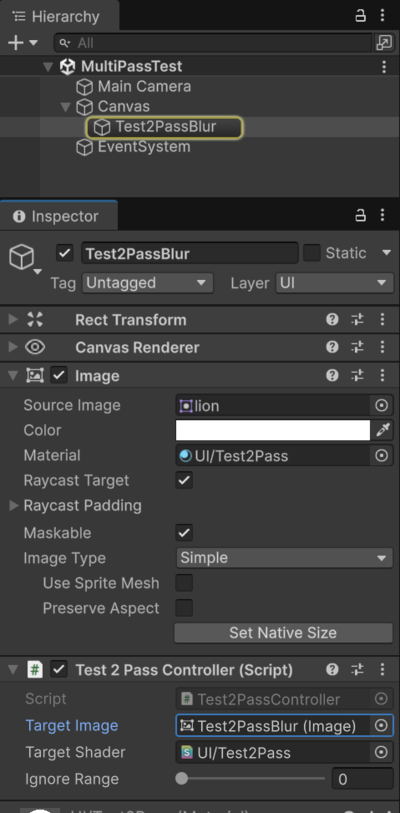
インスペクターのIgnoraRangeの値を上げると、十字の切り抜きが拡大していきます。
では_CustomTexを使わず、Pass0で標準の_MainTexを使った、どういう挙動になるでしょうか。
コードを次のように修正してみます。
結果は以下の通りで、Pass1の結果をPass0に引き継げずに、x軸の処理だけ行われます。
どうしてこうなるかと言うと、CanvasRendererの描画段階に入ると、まず _MainTexの参照先が強制的に上書きされるからです。
uGUI Image > Source Imageにアタッチされた画像の情報を_MainTexに代入し直してから、シェーダーの一番上のPassが実行されます。
Blitによって一時的にPass1の結果を指していたとしても、Pass0が走る瞬間には元の画像に戻ってしまい、処理内容が引き継がれません。

しかし複雑なシェーダーを作りたい場合、どうしても
マルチパス
を作りたいことがあります。マルチパスについて
(一般にBloom、あるいは Glowシェーダーと言われる処理です)
・
1Pass目でx軸をぼかす ・
1Pass目の結果を引き継いで、その上から2Pass目でy軸をぼかす(Separable Blur) ・
2Pass目の結果を引き継いで、その上から3Pass目でオリジナルの画像を被せて、その後全体を光らせるしかし
URP環境下ではCanvasRendererによってプロセスが厳密に管理され、実行されるのは基本一番上のPassのみです。
少しトリッキーですが、C#から明示的にPassを指定しつつ、CanvasRendererの挙動をハックするとマルチパスの実装が可能です。
十字切り抜き2Passシェーダー
内容はC#のインスペクターから
Ignore Range
を操作すると、指定した画像が十字型に切り抜かれていくという実装です。マルチパスの説明のために、敢えてこれを2Passで実装してみます。
内容としてはPass0でx軸の画像の切り抜きを行い、Pass1でy軸の画像の切り抜きを実行します。
展開すると
Assets/UnitySample/U0061
の下に次のようなファイル群が追加されるはずです。このうちの
Test2PassController
を、ImageコンポーネントがアタッチされているGameObjectにアタッチしてください。シェーダー側の解説
以下シェーダー側のコード全文です。
Copy Code
Shader "UI/Test2Pass"
{
    //以下は全部インスペクター上には表示しないけど必要な処理
    //ここで宣言しておかないとSceneセーブした時などに値が維持されない
    Properties
    {
        [HideInInspector] _MainTex("-", 2D) = "white"{} //uGUI及びGraphics.Blitが標準で扱うテクスチャ

        [HideInInspector] _CustomTex("-", 2D)="white"{}
        [HideInInspector] _IgnoreRange("-", float) = 0
    }

    SubShader
    {
        Tags
        {
            "RenderPipeline" = "UniversalPipeline"
            "Queue" = "Transparent"
        }
        Cull Off
        ZWrite Off

        HLSLINCLUDE
            #pragma vertex vert
            #pragma fragment frag
            #include "Packages/com.unity.render-pipelines.universal/ShaderLibrary/Core.hlsl"

            //uGUI Image > Source Imageにアタッチされた画像を参照できるようにする
            TEXTURE2D(_MainTex);
            SAMPLER(sampler_MainTex);

            //最終的に画面に出力されるテクスチャを宣言、中身のデータはC#側から渡される
            TEXTURE2D(_CustomTex);
            SAMPLER(sampler_CustomTex);

            //SRP Batcherを適用、動的に変更される数値はこの中に定義
            CBUFFER_START(UnityPerMaterial)
                half _IgnoreRange;
            CBUFFER_END

            struct Attributes
            {
                half2 uv : TEXCOORD0;
                float4 positionOS : POSITION;
            };

            struct Varyings
            {
                half2 uv : TEXCOORD0;
                float4 positionCS : SV_POSITION;
            };

            Varyings vert (Attributes input)
            {
                Varyings output;
                output.positionCS = TransformObjectToHClip(input.positionOS.xyz);
                output.uv = input.uv;
                return output;
            }
        ENDHLSL

        //Pass0: 一番上のPassはuGUIのCanvasRendererから自動的に呼び出される、処理的には下のPass1より後に実行される
        Pass
        {
            //最終出力は背景と合成させる
            Blend SrcAlpha OneMinusSrcAlpha

            HLSLPROGRAM
                //画像x軸の真ん中あたりの描画を飛ばす
                half4 frag (Varyings input) : SV_Target
                {
                    //_MainTexではなく、C#側から書き込みを行った_CustomTexを最終的な描画対象とする
                    //これによりuGUIの標準の描画ロジックを回避して、Pass1の内容を引き継いで出力できる
                    //まずこの_CustomTexから、指定のUV座標のピクセル色を抜き出す
                    half4 original = SAMPLE_TEXTURE2D(_CustomTex, sampler_CustomTex, input.uv);

                    half isRightInUV = step(0.5 + _IgnoreRange, input.uv.x); //渡されたUV座標が画像の右側に存在するか
                    half isLeftInUV = step(input.uv.x, 0.5 - _IgnoreRange); //渡されたUV座標が画像の左側に存在するか
                    half isCenter = 1 - max(isRightInUV, isLeftInUV); //渡されたUV座標がx軸の真ん中あたりかどうか

                    return lerp(original, half4(0, 0, 0, 0), isCenter); //真ん中辺りだったら透明色を渡して描画させない
                }
            ENDHLSL
        }

        //Pass1: C#から明示的に呼び出す
        Pass
        {
            //この段階では背景との合成が必要ないのでBlend Off
            Blend One Zero

            HLSLPROGRAM
                //画像y軸の真ん中あたりの描画を飛ばす
                half4 frag (Varyings input) : SV_Target
                {
                    //SourceImageにアタッチされた画像の、指定UV座標のピクセル色を取得
                    half4 original = SAMPLE_TEXTURE2D(_MainTex, sampler_MainTex, input.uv);

                    half isUpInUV = step(0.5 + _IgnoreRange, input.uv.y); //渡されたUV座標が画像の上側に存在するか
                    half isDownInUV = step(input.uv.y, 0.5 - _IgnoreRange); //渡されたUV座標が画像の下側に存在するか
                    half isCenter = 1 - max(isUpInUV, isDownInUV); //渡されたUV座標がy軸の真ん中あたりかどうか

                    return lerp(original, half4(0, 0, 0, 0), isCenter); //真ん中辺りだったら透明色を渡して描画させない
                }
            ENDHLSL
        }
    }
}
Passの実行順
Copy Code
        //Pass0: 一番上のPassはuGUIのCanvasRendererから自動的に呼び出される、処理的には下のPass1より後に実行される
        Pass
        {
            //最終出力は背景と合成させる
            Blend SrcAlpha OneMinusSrcAlpha

            HLSLPROGRAM
                //画像x軸の真ん中あたりの描画を飛ばす
                half4 frag (Varyings input) : SV_Target
Copy Code
        //Pass1: C#から明示的に呼び出す
        Pass
        {
            //この段階では背景との合成が必要ないのでBlend Off
            Blend One Zero

            HLSLPROGRAM
                //画像y軸の真ん中あたりの描画を飛ばす
                half4 frag (Varyings input) : SV_Target
uGUIの描画はCanvasRendererで厳しめに管理されていて、C#側から描画順の全てを管理することが困難です。
普通に実装すると、最終的にはCanvasRendererがC#側の実装を全て塗り替えてしまいます。
CanvasRendererの「カメラ描画工程の後ろの方で、一番上のPassを暗黙的に呼ぶ」という仕様
をそのまま利用し、かつハックします。
Copy Code
                    //_MainTexではなく、C#側から書き込みを行った_CustomTexを最終的な描画対象とする
                    //これによりuGUIの標準の描画ロジックを回避して、Pass1の内容を引き継いで出力できる
                    //まずこの_CustomTexから、指定のUV座標のピクセル色を抜き出す
                    half4 original = SAMPLE_TEXTURE2D(_CustomTex, sampler_CustomTex, input.uv);
_MainTex
ではなく、C#から流し込んだ _CustomTex
を、CanvasRendererに描画させます。C#側の解説
Copy Code
using UnityEngine;
using UnityEngine.UI;

[ExecuteAlways]
/// <summary>
/// uGUIの2Passを実装するために、RenderTextureを自前で流し込むクラス
/// </summary>
using UnityEngine;
using UnityEngine.UI;

[ExecuteAlways]
/// <summary>
/// uGUIの2Passを実装するために、RenderTextureを自前で流し込むクラス
/// </summary>
public class Test2PassController : MonoBehaviour
{
    [SerializeField] private Image targetImage;
    [SerializeField] private Shader targetShader;
    [SerializeField, Range(0f, 0.5f)] private float ignoreRange; //画像描画の無視範囲を設定する

    private Texture2D sourceTexture;
    private Material createdMaterial;
    private RenderTexture tmpRenderTexture;

    //変更があったときだけ更新するためのキャッシュ
    private float _lastIgnoreRange;

    /// <summary>
    /// 初期化処理の必要性がある場合trueを返す
    /// </summary>
    private bool NeedsInitialization => sourceTexture == null || sourceTexture != targetImage.sprite.texture ||
                                        createdMaterial == null || targetImage.material != createdMaterial ||
                                        tmpRenderTexture == null;

    /// <summary>
    /// ignoreRangeのパラメータに変化があったかチェック
    /// </summary>
    private bool CahngedParameter => !Mathf.Approximately(ignoreRange, _lastIgnoreRange);

    /// <summary>
    /// コンポーネントをアタッチした時一度だけ呼ばれる
    /// </summary>
    private void Reset()
    {
        if(targetImage == null)
        {
            targetImage = GetComponent<Image>();
        }
    }

    /// <summary>
    /// 初期化処理
    /// </summary>
    private void Init()
    {
        Release();

        sourceTexture = targetImage.sprite.texture;
        createdMaterial = new (targetShader);
        createdMaterial.hideFlags = HideFlags.DontSave;
        targetImage.material = createdMaterial;

        //Imageとアタッチされた画像と同じサイズでRenderTextureを作成
        tmpRenderTexture = new RenderTexture(sourceTexture.width, sourceTexture.height, 0);

        //事前にBlitで更新される予定のtmpRenderTextureを、_CustomTexの名前でシェーダー側と紐づけておく
        //後はCanvasRender内の処理で自動的にPass0を実行させて、その_CustomTexを画像に反映させる
        targetImage.material.SetTexture("_CustomTex", tmpRenderTexture);

        //初期化後は問答無用でUpdateTextureを呼ぶ
        UpdateTexture();
    }

    /// <summary>
    /// 最初にUnityが1回だけ呼ぶ処理
    /// </summary>
    private void Start()
    {
        if (NeedsInitialization)
        {
            Init();
        }
    }

    /// <summary>
    /// Unityから毎フレーム呼ばれる処理
    /// </summary>
    private void Update()
    {
        if (targetImage == null || targetImage.sprite == null || targetShader == null)
        {
            return;
        }

        if (NeedsInitialization)
        {
            Init();
        }
        else if(CahngedParameter)
        {
            UpdateTexture();
        }
    }

    /// <summary>
    /// 対象のシェーダーの2Passを実行させる
    /// </summary>
    private void UpdateTexture()
    {
        _lastIgnoreRange = ignoreRange;

        //非表示領域をセット
        createdMaterial.SetFloat("_IgnoreRange", ignoreRange);

        //第1引数の画像を元に、Blitでシェーダー内のPass1を実行させ、結果を第2引数に書き込む
        //Blitの仕様上、この書き込み処理は、第3引数のMaterial内の_MainTexを通して行われる
        Graphics.Blit(sourceTexture, tmpRenderTexture, createdMaterial, 1);
    }

    /// <summary>
    /// 作成したRenderTextureやMaterialのメモリを解放する
    /// </summary>
    private void Release()
    {
        if (tmpRenderTexture != null)
        {
            tmpRenderTexture.Release();
        }
        if (createdMaterial != null)
        {
            DestroyImmediate(createdMaterial);
        }
    }

    /// <summary>
    /// このGameObjectを非表示にした時の処理
    /// </summary>
    private void OnDisable()
    {
        Release();
    }
}
Passの呼び出し
tmpRenderTexture
に代入しています。
Copy Code
        //第1引数の画像を元に、Blitでシェーダー内のPass1を実行させ、結果を第2引数に書き込む
        //Blitの仕様上、この書き込み処理は、第3引数のMaterial内の_MainTexを通して行われる
        Graphics.Blit(sourceTexture, tmpRenderTexture, createdMaterial, 1);
このため描画順はPass1 > Pass0という、通常のシェーダーの流れとは違うトリッキーなものになります。
Init()
関数内でやっています。
Copy Code
        //事前にBlitで更新される予定のtmpRenderTextureを、_CustomTexの名前でシェーダー側と紐づけておく
        //後はCanvasRender内の処理で自動的にPass0を実行させて、その_CustomTexを画像に反映させる
        targetImage.material.SetTexture("_CustomTex", tmpRenderTexture);
Hierarychyの設定
インスペクターのIgnoraRangeの値を上げると、十字の切り抜きが拡大していきます。
なぜ_CustomTexが必要か?
コードを次のように修正してみます。
Copy Code
                    //_MainTexではなく、C#側から書き込みを行った_CustomTexを最終的な描画対象とする
                    //これによりuGUIの標準の描画ロジックを回避して、Pass1の内容を引き継いで出力できる
                    //まずこの_CustomTexから、指定のUV座標のピクセル色を抜き出す
                    //half4 original = SAMPLE_TEXTURE2D(_CustomTex, sampler_CustomTex, input.uv);
                    half4 original = SAMPLE_TEXTURE2D(_MainTex, sampler_MainTex, input.uv);
uGUI Image > Source Imageにアタッチされた画像の情報を_MainTexに代入し直してから、シェーダーの一番上のPassが実行されます。
Blitによって一時的にPass1の結果を指していたとしても、Pass0が走る瞬間には元の画像に戻ってしまい、処理内容が引き継がれません。